


We all use the Internet Protocol (IP) daily, whether we're aware of it or not. For instance, any time you type a website name or a search term into your web browser, it looks up the IP address of that URL (or of a search engine) and then loads the website.
Let's divide IP addresses into two categories: private and public. Private IP addresses are the ones your WiFi box (and company intranet) provide. They are in the range of 10.x.x.x, 172.16.x.x-172.31.x.x, and 192.168.x.x, where x=0 to 255. Public IP addresses, as the name suggests, are "public" and you can reach them from anywhere in the world. Every website has a unique IP address that can be reached by anyone and from anywhere; that is considered a public IP address.
Furthermore, there are two types of IP addresses: IPv4 and IPv6.
IPv4 addresses have the format x.x.x.x, where x=0 to 255. There are 2^32 (approximately 4 billion) possible IPv4 addresses.
IPv6 addresses have a more complex format using hex numbers. The total number of bits is 128, which means there are 2^128—340 undecillion!—possible IPv6 addresses. IPv6 was introduced to tackle the foreseeable exhaustion of IPv4 addresses in the near future.
As a network engineer, I recommend not sharing your machine’s public IP address with anyone. Your WiFi router has a public IP, which is the WAN (wide-area network) IP address, and it will be the same for any device connected to that WiFi. All the devices connected to the same WiFi have private IP addresses locally identified by the range provided above. For example, my laptop is connected with the IP address 192.168.0.5, and my phone is connected with 192.168.0.8. These are private IP addresses, but both would have the same public IP address.
The following commands will get you the IP address list to find public IP addresses for your machine:
curl ifconfig.mecurl -4/-6 icanhazip.comcurl ipinfo.io/ipcurl api.ipify.orgcurl checkip.dyndns.orgdig +short myip.opendns.com @resolver1.opendns.comhost myip.opendns.com resolver1.opendns.comcurl ident.mecurl bot.whatismyipaddress.comcurl ipecho.net/plain
The following commands will get you the private IP address of your interfaces:
ifconfig -aip addr (ip a)hostname -I | awk '{print $1}'ip route get 1.2.3.4 | awk '{print $7}'(Fedora) Wifi-Settings→ click the setting icon next to the Wifi name that you are connected to → Ipv4 and Ipv6 both can be seennmcli -p device show
Note: Some utilities need to be installed on your system based on the Linux distro you are using. Also, some of the noted commands use a third-party website to get the IP
Finding your IP address in the GNOME desktop
If you're using Linux, you can find your IP address using some basic desktop utilities. First, go to your Activities screen and type Network (for a wired connection) or Wi-Fi (for wireless).
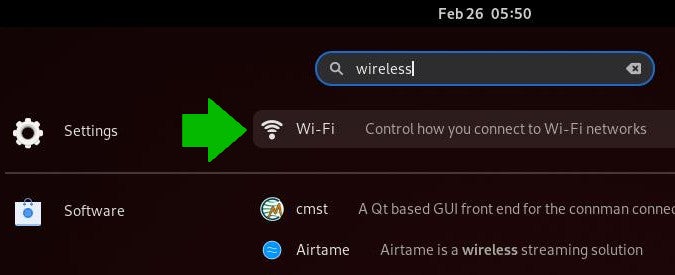
In the Networks settings window, click the Gear icon next to the network you're on.
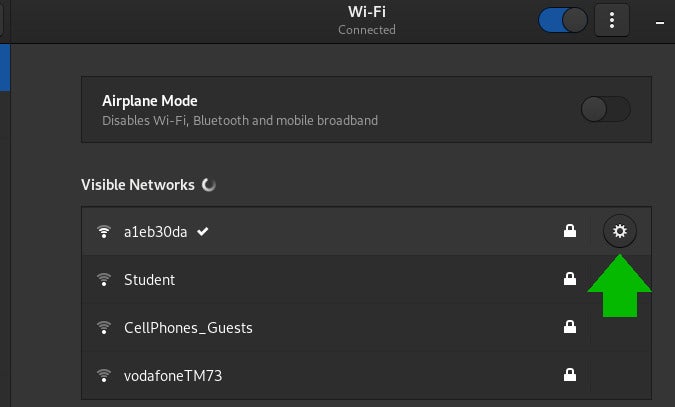
Your IP address is listed in the Network profile.
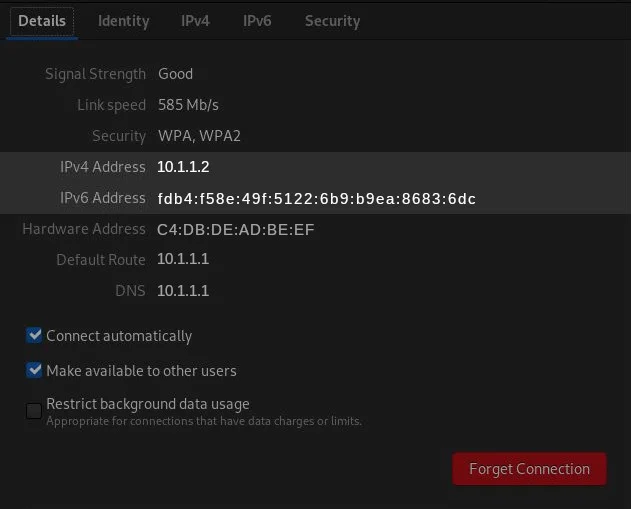
In this example screenshot, my IPv4 address is 10.1.1.2 and the gateway is 10.1.1.1.
Public and private IP addresses
To understand the significance of public and private IP addresses, let's have a look at a concept called NAT (Network Address Translation) and PAT (Port Address Translation).
Private addresses are used in Local Area Networks (LAN). They are bound to a specific network.
Public addresses are necessary for establishing external connectivity to other networks, most notably the "Worldwide Web" (www) of the Internet.
NAT is a translation of a private IP to a public one, and consists of three major types: static, dynamic, and PAT. In static NAT, one private IP is mapped to one public IP. A common example ru ydco is a firewall. In dynamic NAT, a private IP address is mapped to a public IP but from a pool of public IP addresses.
With a total of 2^32 IPv4 addresses, out of which approximately just 3.7 billion are public addresses, there are literally more people and devices than there are IP addresses. And yet we haven't run out of addresses. That's because of a concept called PAT, which allows for a single public IP address to be translated from multiple (generally all) private IP addresses using port numbers. Here, instead of assigning a public address to each device, a single public address is allocated to the external side, and private addresses are assigned to each device within the internal network. PAT is most widely used in residential wireless routers, which we use to connect to the Internet.
Private Ipv4 addresses
-
Local addresses are only used within an internal network.
-
The range is 10.x.x.x, 172.16.x.x-172.31.x.x, and 192.168.x.x, (x is a number from 0 to 255).
-
Used in Local Area Networks (LAN).
-
Not globally reachable, and cannot be searched globally.
-
Not unique: the same private IP can be used in two different networks.
-
Each router comes with a private IP address, which multiple devices can connect to. Users don’t need to pay extra to obtain a private address.
-
Some example private IP addresses: 10.0.0.4, 172.16.4.5, 192.168.9.8
Public Ipv4 addresses
-
Public addresses are used to connect to external networks.
-
Ranges from 0.0.0.0 to 255.255.255.255, except for private IP addresses and few unusable or reserved IPs.
-
Used in connecting to the Internet.
-
Globally reachable and can be searched. These are often used to determine geolocation.
-
Unique across all of the Internet.
-
A private address costs money because they are unique, limited, and accessible from the Internet. Each website has a domain name mapped to a public IP. For example, the public IP address for opensource.com is 54.204.39.132
Finding your way with IP
An IP address is the most direct route to a computer over a network. There are other systems, such as DNS and Avahi, to help route one computer to another, but when those are unavailable or undesired for any reason, the IP protocol is what you use. Now you understand why, and more importantly, how to find your own.
Editor's note: This article was originally published in May 2018 and has been updated.





9 Comments