

Join the 85,000 open source advocates who receive our giveaway alerts and article roundups.
Choosing a printer for Linux
Linux offers widespread support for printers. Learn how to take advantage of it.

opensource.com
We've made significant strides toward the long-rumored paperless society, but we still need to print hard copies of documents from time to time. If you're a Linux user and have a printer without a Linux installation disk or you're in the market for a new device, you're in luck. That's because most Linux distributions (as well as MacOS) use the Common Unix Printing System (CUPS), which contains drivers for most printers available today. This means Linux offers much wider support than Windows for printers.
Selecting a printer
If you're buying a new printer, the best way to find out if it supports Linux is to check the documentation on the box or the manufacturer's website. You can also search the Open Printing database. It's a great resource for checking various printers' compatibility with Linux.Here are some Open Printing results for Linux-compatible Canon printers.

The screenshot below is Open Printing's results for a Hewlett-Packard LaserJet 4050—according to the database, it should work "perfectly." The recommended driver is listed along with generic instructions letting me know it works with CUPS, Line Printing Daemon (LPD), LPRng, and more.

In all cases, it's best to check the manufacturer's website and ask other Linux users before buying a printer.
Checking your connection
There are several ways to connect a printer to a computer. If your printer is connected through USB, it's easy to check the connection by issuing lsusb at the Bash prompt.
$ lsusb
The command returns Bus 002 Device 004: ID 03f0:ad2a Hewlett-Packard—it's not much information, but I can tell the printer is connected. I can get more information about the printer by entering the following command:
$ dmesg | grep -i usb
The results are much more verbose.
If you're trying to connect your printer to a parallel port (assuming your computer has a parallel port—they're rare these days), you can check the connection with this command:
$ dmesg | grep -i parport
The information returned can help me select the right driver for my printer. I have found that if I stick to popular, name-brand printers, most of the time I get good results.
Setting up your printer software
Both Fedora Linux and Ubuntu Linux contain easy printer setup tools. Fedora maintains an excellent wiki for answers to printing issues. The tools are easily launched from Settings in the GUI or by invoking system-config-printer on the command line.
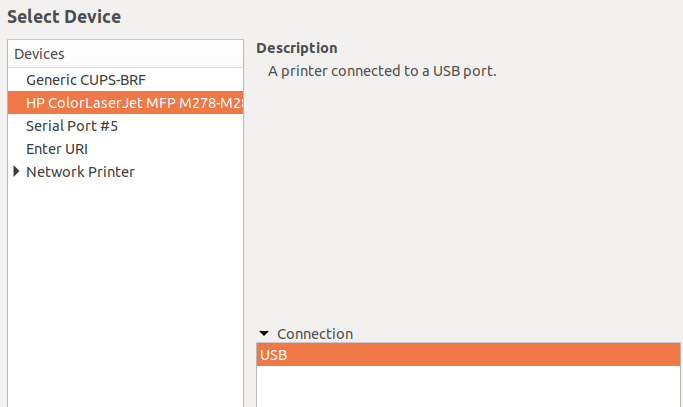
Hewlett-Packard's HP Linux Imaging and Printing (HPLIP) software, which supports Linux printing, is probably already installed on your Linux system; if not, you can download the latest version for your distribution. Printer manufacturers Epson and Brother also have web pages with Linux printer drivers and information.
What's your favorite Linux printer? Please share your opinion in the comments.





7 Comments
My recommendation for any printer, whether Linux, MacOS, Windows or any other OS is to use one that has native support for an industry-standard page description language - PostScript or PCL.
Printers with proprietary languages (which includes most ink jets and some lasers) are always at the mercy of the manufacturer to provide drivers for it. Even if drivers are available when you buy the printer, what are the odds that support will continue for the entire life of the printer - which may span over a decade and involve many major OS updates?
People with abandoned printers can often install open source Gutenprint drivers, but the quality of those drivers isn't always the best, especially for things like color calibration and photo printing. They often fail to take advantage of all of a printer's features.
If, on the other hand, your printer uses PostScript or PCL, you generally don't have this problem. Drivers are generic - either manually configure it for your printers features or download a cross-platform "PPD" file from the manufacturer. And if the printer maker abandons you, your OS's generic driver will continue working far into the forseeable future.
Additionally, support for PostScript (and to a lesser extent, PCL) means you can also print from old or unpopular operating systems like (for example), SunOS, BeOS and OS/2 - platforms where no manufacturer will ever develop a driver - because they all include some amount of generic PostScript support.
In addition to choosing a good language, I would always recommend a network-attached printer. One with a built-in Ethernet and/or Wi-Fi interface. If your printer is attached via USB, then you can only print from the attached computer - you can configure that computer as a print server, but it will still have to store and forward everybody's print jobs. If the printer is directly attached to the network, however, every host can be configured with its IP address and send documents directly to it, without needing to bother with configuring any computer as a print server.
Thank you for the rich response.
Another option is to use devices that can be used independently of a computer because they have USB ports, memory card slots, and PDF support. Otherwise, I also consider Postscript and network connectivity to be must-have features. PCL is acceptable, but less desirable than Postscript because there are more tools to work with Postscript files. Using devices that require proprietary software, drivers, protocols, or unusual configuration steps is inviting disaster.
Brother printers.... Enough said, Linux support right on their site. Installers made for every printer.
I used HP printers for years, as they had software in the repositories. The high price of ink, troubles with the printer and lack of concern by HP about the problems drove me to look for another printer. I choose Brother WIFI printer and could not be happier. Lower ink prices, no problems with the printer and though I am a GUI guy, I was able to go to their website, download the software and drivers and easily install them with the self extracting tarball. I would recommend Brother printers in a minute to anyone using Linux.
Internet Printing Protocol Secure and driverless printing is not mentioned in choosing a printer for Linux.
IPPS is a more secure way of printing on LAN with a network printer.
I have not been able to IPPS to work on Windows.
(Printer Security) http://hacking-printers.net/wiki/index.php/Main_Page
http://manpages.ubuntu.com/manpages/artful/en/man1/driverless.1.html
https://lists.ubuntu.com/archives/ubuntu-devel/2016-December/039586.html
https://wiki.debian.org/DriverlessPrinting
Thanks for adding to the learning.
